OpenCode 快速开始
开始使用 OpenCode。
OpenCode 是一款开源的 AI 编程助手。它提供终端界面、桌面应用和 IDE 扩展。
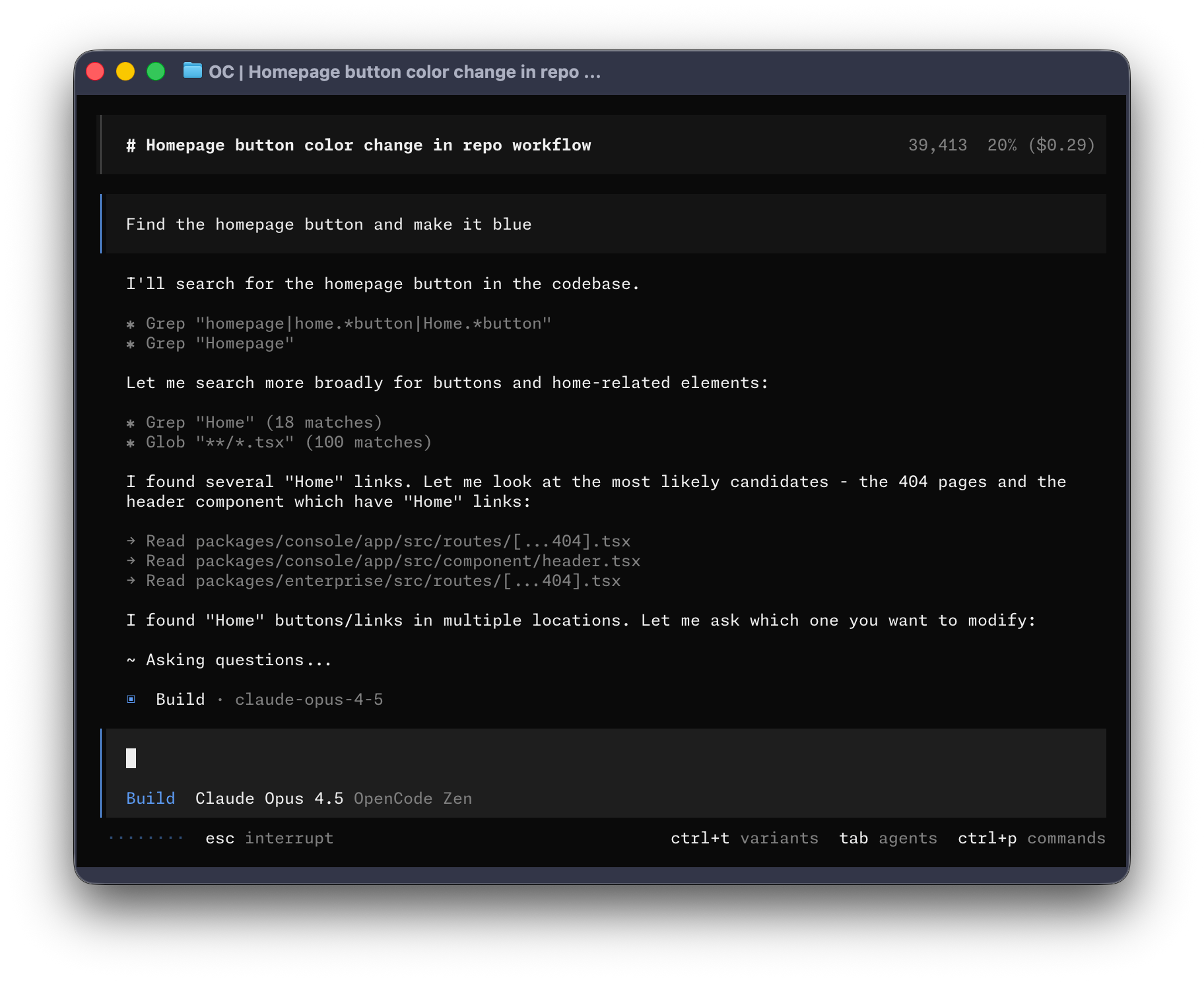
让我们开始吧。
前置要求
在终端中使用 OpenCode,你需要:
- 现代终端模拟器,例如:
- WezTerm (opens in a new tab),跨平台
- Alacritty (opens in a new tab),跨平台
- Ghostty (opens in a new tab),Linux 和 macOS
- Kitty (opens in a new tab),Linux 和 macOS
- 你想使用的 LLM 提供商的 API 密钥。
安装
安装 OpenCode 最简单的方式是通过安装脚本。
curl -fsSL https://opencode.ai/install | bash你也可以使用以下命令安装:
- 使用 Node.js
npm install -g opencode-ai- 在 macOS 和 Linux 上使用 Homebrew
brew install anomalyco/tap/opencode我们推荐使用 OpenCode tap 以获取最新版本。官方的
brew install opencodeformula 由 Homebrew 团队维护,更新频率较低。
- 在 Arch Linux 上安装
sudo pacman -S opencode           # Arch Linux(稳定版)
paru -S opencode-bin              # Arch Linux(AUR 最新版)
Windows
推荐:使用 WSL
为了在 Windows 上获得最佳体验,我们推荐使用 Windows Subsystem for Linux (WSL)。它提供更好的性能和与 OpenCode 功能的完全兼容。
- 使用 Chocolatey
choco install opencode- 使用 Scoop
scoop install opencode- 使用 NPM
npm install -g opencode-ai- 使用 Mise
mise use -g github:anomalyco/opencode- 使用 Docker
docker run -it --rm ghcr.io/anomalyco/opencode目前正在开发使用 Bun 在 Windows 上安装 OpenCode 的支持。
你也可以从 Releases (opens in a new tab) 页面下载二进制文件。
配置
使用 OpenCode,你可以通过配置 API 密钥来使用任何 LLM 提供商。
如果你是 LLM 提供商的新手,我们推荐使用 OpenCode Zen。这是一个经过 OpenCode 团队测试和验证的精选模型列表。
- 在 TUI 中运行
/connect命令,选择 opencode,然后前往 opencode.ai/auth (opens in a new tab)。
/connect-
登录,添加你的账单信息,然后复制你的 API 密钥。
-
粘贴你的 API 密钥。
┌ API key
│
│
└ enter或者,你可以选择其他提供商。了解更多。
初始化
配置好提供商后,你可以导航到想要工作的项目。
cd /path/to/project然后运行 OpenCode。
opencode接下来,通过运行以下命令为项目初始化 OpenCode。
/init这将让 OpenCode 分析你的项目并在项目根目录创建一个 AGENTS.md 文件。
提示
你应该将项目的 AGENTS.md 文件提交到 Git。
这有助于 OpenCode 理解项目结构和使用的编码模式。
使用方法
你现在可以使用 OpenCode 来处理你的项目了。随意向它提问!
如果你是 AI 编程助手的新手,这里有一些可能有帮助的示例。
提问
你可以让 OpenCode 向你解释代码库。
提示
使用 @ 键在项目中模糊搜索文件。
How is authentication handled in @packages/functions/src/api/index.ts如果代码库中有你没有参与开发的部分,这会很有帮助。
添加功能
你可以让 OpenCode 为你的项目添加新功能。不过我们首先建议让它创建一个计划。
-
创建计划
OpenCode 有一个计划模式,它会禁用修改功能,转而建议如何实现该功能。
使用 Tab 键切换到该模式。你会在右下角看到一个指示器。
<TAB>现在让我们描述我们想让它做什么。
When a user deletes a note, we'd like to flag it as deleted in the database.
Then create a screen that shows all the recently deleted notes.
From this screen, the user can undelete a note or permanently delete it.
你需要给 OpenCode 足够的细节来理解你想要什么。把它当作你团队中的初级开发者来交流会很有帮助。
提示
给 OpenCode 提供充足的上下文和示例,帮助它理解你想要什么。
-
迭代计划
一旦它给你一个计划,你可以给它反馈或添加更多细节。
We'd like to design this new screen using a design I've used before.
[Image #1] Take a look at this image and use it as a reference.
提示
将图片拖放到终端中以添加到提示中。
OpenCode 可以扫描你提供的任何图片并将它们添加到提示中。你可以通过将图片拖放到终端中来实现。
-
构建功能
一旦你对计划感到满意,再次按 Tab 键切换回构建模式。
<TAB>然后让它进行修改。
Sounds good! Go ahead and make the changes.
进行修改
对于更直接的修改,你可以让 OpenCode 直接构建,而无需先审查计划。
We need to add authentication to the /settings route. Take a look at how this is
handled in the /notes route in @packages/functions/src/notes.ts and implement
the same logic in @packages/functions/src/settings.ts
你需要确保提供足够的细节,以便 OpenCode 做出正确的修改。
撤销修改
假设你让 OpenCode 进行了一些修改。
Can you refactor the function in @packages/functions/src/api/index.ts?但你意识到这不是你想要的。你可以使用 /undo 命令撤销修改。
/undoOpenCode 现在会撤销你所做的修改,并再次显示你的原始消息。
Can you refactor the function in @packages/functions/src/api/index.ts?从这里你可以调整提示并让 OpenCode 重试。
提示
你可以多次运行 /undo 来撤销多个修改。
或者你可以使用 /redo 命令重做修改。
/redo分享
你与 OpenCode 的对话可以与你的团队分享。
/share这将创建一个当前对话的链接并复制到你的剪贴板。
注意
对话默认不会被分享。
这是一个与 OpenCode 的示例对话 (opens in a new tab)。
自定义
就是这样!你现在已经是使用 OpenCode 的专家了。
为了让它更符合你的习惯,我们推荐选择一个主题、自定义快捷键、配置代码格式化器、创建自定义命令,或者探索 OpenCode 配置。